
Most live streams lose viewers within the first few minutes. Low engagement is not just frustrating — it directly cuts into your revenue and growth. Interactive streams generate 10x more comments and 3x the engagement of standard broadcasts, which means the gap between a passive stream and an interactive one is significant. This guide walks you through the exact tools, step-by-step configuration, and monetization strategies you need to build a stream setup that keeps viewers watching, participating, and coming back.
Table of Contents
- What you need before going interactive
- Step-by-step: Building your interactive stream setup
- Making every interaction count: Best practices and pro tips
- Simulcasting and monetization: Expanding reach and revenue
- Troubleshooting, edge cases, and optimization tips
- Level up your interactive streams with VexioTV
- Frequently asked questions
Key Takeaways
| Point | Details |
|---|---|
| Interactive setup matters | Well-configured interactive streams drive much higher engagement and viewer retention. |
| Use the right tools | OBS Studio, browser sources, and plugins enable professional results without high costs. |
| Optimize and monetize | Multi-streaming and timed interactions increase both your audience and income potential. |
| Balance interactivity | Pace interactions and use moderation tools to avoid chat overload and burnout. |
| Test, fix, repeat | Regular testing and upgrades keep your interactive streams smooth and resilient. |
What you need before going interactive
Now that you see what's possible, let's cover what you'll need to get started with interactive streaming. Getting the right gear and software in place before your first interactive session saves you from technical problems mid-stream.
OBS Studio serves as the central encoding hub for most interactive stream setups. It handles scene switching, browser sources for overlays, and plugin integration. Without it, most of the tools in this guide won't connect properly.
Here is a quick overview of the core requirements:
| Category | Recommended option | Why it matters |
|---|---|---|
| Camera | Logitech Brio webcam | Sharp 4K image, reliable autofocus |
| Microphone | USB condenser mic | Clear audio without complex setup |
| Connection | Wired Ethernet | Stable upload, no packet loss |
| Software | OBS Studio (free) | Scene control, overlays, plugins |
| Upload speed | 20Mbps or higher | Supports plugins and overlays |
Before going live, prepare these content assets:
- Poll questions and trivia sets ready to paste in
- Scene graphics for intro, gameplay, and Q&A segments
- Community rituals like weekly shout-outs or recurring game segments
- Chat overlay URLs from your streaming platform
Review the full interactive stream checklist to make sure nothing is missing before your first session. You can also explore growing with VexioTV clips to see how other creators are structuring their content.
Pro Tip: Close all unused browser tabs and background apps before going live. Every open process competes for CPU and RAM, which directly affects stream stability.
Step-by-step: Building your interactive stream setup
With your essentials ready, it's time to transform your stream into an interactive experience step by step.
- Install OBS Studio and run the auto-configuration wizard. Set your output resolution to 1080p and frame rate to 60fps for smooth video.
- Add your camera and microphone as separate sources in OBS. Label them clearly so you can mute or swap them quickly during a live session.
- Insert your chat overlay using a browser source. Add Twitch chat overlays in OBS by pasting the popout chat URL into a new browser source window inside OBS.
- Install an interactive plugin such as LiveReacting or StreamAlive. LiveReacting and StreamAlive plugins allow real-time polls and quizzes, boosting retention by 25%.
- Build your scene collection. Create separate scenes for your intro, main content, game segments, and Q&A. Each scene should have its own layout and overlay configuration.
- Test every element before going live. Run a private test stream and click through every interactive feature to confirm it works.
Here is a comparison of the two most popular interactive plugins:
| Feature | LiveReacting | StreamAlive |
|---|---|---|
| Poll types | Multiple choice, image polls | Word clouds, rankings, yes/no |
| OBS integration | Direct browser source | Browser source plus dashboard |
| Free tier | Yes, limited features | Yes, limited responses |
| Best for | Gaming and trivia streams | Talk shows and Q&A sessions |
For more ideas on what works, check out the best interactive techniques used by top creators. Once your setup is stable, look into partnering for interactive content to access additional growth tools.
Pro Tip: Always preview your browser source overlays in OBS before streaming. Fonts and colors can render differently on stream than they appear on your monitor.
Making every interaction count: Best practices and pro tips
Once your interactive tools are set up, learning how to engage efficiently makes the real difference in results.
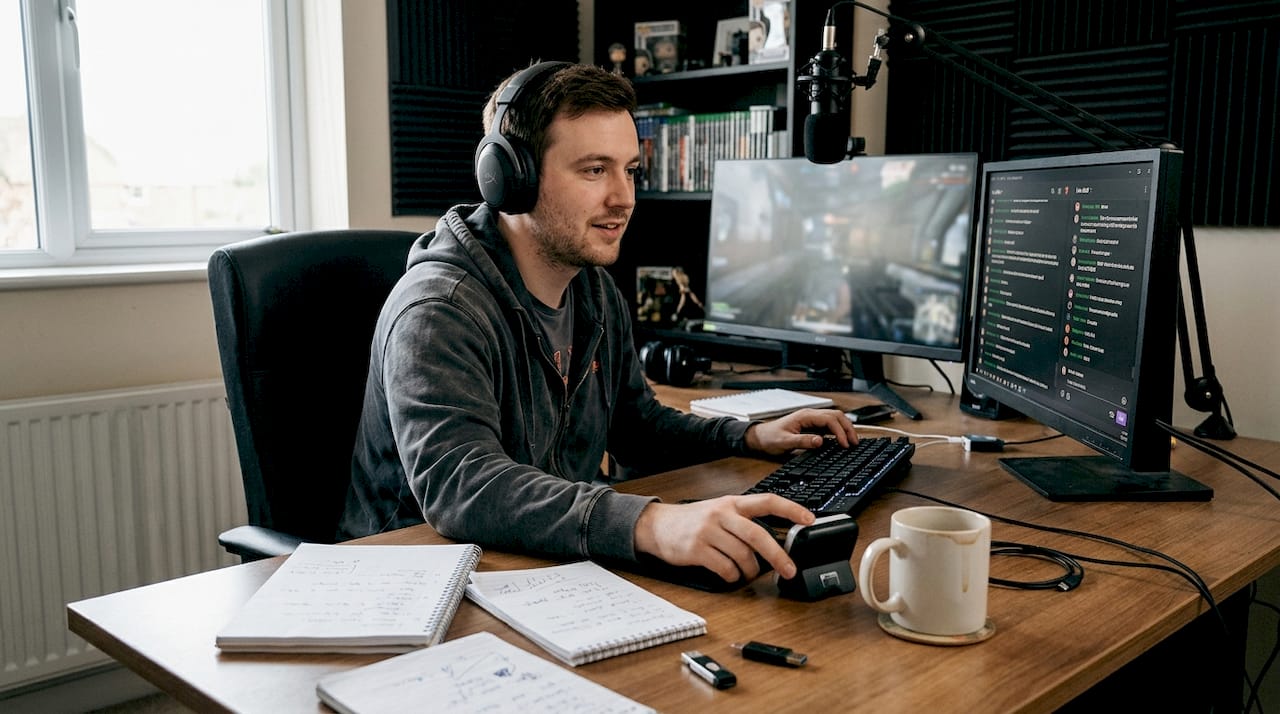
Timing matters more than most streamers realize. The golden ratio is one interaction every 2-3 minutes and polls every 10 minutes. This keeps the stream lively without overwhelming your audience or yourself.
Here are the core practices to follow:
- Run a poll every 10 minutes on a topic related to your current content
- Trigger shout-outs, trivia questions, or mini-games every 2 to 3 minutes
- Limit chat command triggers to avoid spam floods
- Use subscriber-only polls to reward loyal viewers and encourage upgrades
- Assign a moderator to manage chat during high-traffic moments
- Track your repeat viewer rate weekly as your primary retention metric
Stat to know: Engagement can increase up to 345% with consistent interactivity built into a stream.
Moderation is not optional. Without it, a busy chat becomes noise, and new viewers leave. Set up AutoMod filters and train at least one trusted moderator before scaling your audience. You can review interaction highlights from past streams to identify which moments drove the most chat activity.
Pro Tip: Use a physical timer or on-screen countdown to remind yourself when to trigger the next poll or shout-out. Consistency in timing builds viewer habit and expectation.
For a structured approach to planning your stream calendar, schedule community rituals in advance so your audience knows what to expect each session.
Simulcasting and monetization: Expanding reach and revenue
Now that engagement is up, let's maximize your stream's reach and revenue potential.
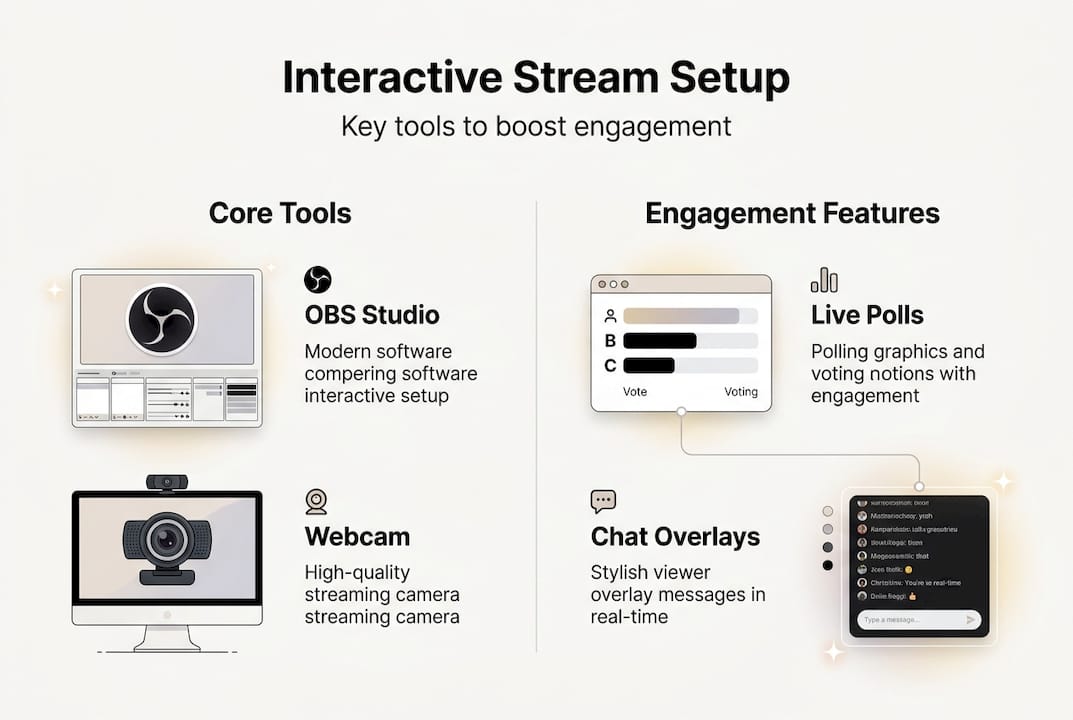
Multi-streaming via OBS or Restream triples total audience and lets you stack monetization methods across platforms simultaneously. The two main approaches are OBS plugins (free but CPU-heavy) and cloud services like Restream (paid but more stable).
Bitrate settings matter for quality. Use these targets:
| Platform | Recommended bitrate | Notes |
|---|---|---|
| Twitch | 6,000 kbps | Max for non-partnered accounts |
| YouTube Live | 8,000 kbps | Supports 1080p60 reliably |
| VexioTV | Match platform cap | Check current platform limits |
Here are the main monetization methods to stack:
- Super Chats and Stickers on YouTube Live
- Channel memberships and subscriber badges on Twitch
- Merchandise links pinned in chat
- Live ad breaks during natural pauses
- Platform-specific creator funds
Super Chat and Stickers yield a 70% creator cut, and combined streams can generate 5 to 10 times more income per hour compared to VOD content.
Stacking platforms means stacking income. Each platform's audience behaves differently, so tailor your call-to-action for each chat. See how VexioTV powers multi-platform growth and review livestream audience benchmarks to set realistic revenue targets.
Troubleshooting, edge cases, and optimization tips
Last, let's keep your stream running smoothly, even when facing common or rare issues.
Test everything pre-stream, use wired Ethernet, and shut down unused browser sources for stability. These three steps alone prevent the majority of mid-stream failures.
Here is a practical checklist for pre-stream and live troubleshooting:
- Run a 5-minute private test stream before every session
- Confirm all browser sources are loading correctly in OBS
- Set OBS to low-latency mode if interactivity is your priority
- Use normal latency mode if video quality matters more than real-time chat
- Enable slow mode in chat during peak traffic to reduce spam
- Restrict polls and commands to subscribers during high-viewer events
- Build a fallback scene in OBS for technical interruptions (a simple "Be right back" screen)
- Keep a second device open to monitor your stream from the viewer's perspective
Key rule: Never rely on Wi-Fi for a live stream. A single dropped packet can cause buffering that pushes viewers away permanently.
For advanced scenarios, review expert simulcasting guidance to handle multi-platform latency differences. You can also visit VexioTV's streaming tips for platform-specific optimization advice.
Pro Tip: Save your OBS scene collection as a backup file after every major update. If something breaks before a stream, you can restore your full setup in under a minute.
Level up your interactive streams with VexioTV
Bringing it all together, here's how the right platform can amplify everything you've built.
VexioTV is built for creators who want more than just a place to go live. The platform supports community interaction, clip sharing, and growth tools that work alongside your existing OBS setup.
Use VexioTV clips to highlight your best interactive moments and share them across social platforms to attract new viewers. The VexioTV platform gives you a dedicated space to build your audience, earn from your streams, and connect with a community of creators who are growing in the same space. Sign up, go live, and start building the interactive stream your audience will keep coming back to.
Frequently asked questions
What is the best tool for adding live chat overlays to my stream?
OBS Studio as the central encoding hub supports browser sources natively, making it the most widely used option for adding Twitch and YouTube chat overlays without extra software.
How do interactive elements increase subscriber or donation rates?
Real-time polls, shout-outs, and chat-triggered features drive chat activity, which directly correlates with higher Super Chat and membership conversions. Combined streams can generate 5 to 10 times more income per hour than VOD content.
Can I stream to multiple platforms at once without losing quality?
Yes. Use OBS plugins or a service like Restream and match your bitrate to each platform's recommended settings. Multi-streaming can triple your reach with no quality loss when bitrates are properly configured.
What's the best polling frequency for audience retention?
Poll every 10 minutes as a baseline. This frequency keeps engagement consistent without interrupting the natural flow of your content.