
TL;DR:
- Proper gear, especially a dynamic microphone and reliable internet, is essential for quality music livestreams.
- Setting up and testing your OBS stream beforehand ensures smooth, professional performance quality.
- Engaging viewers with interaction features builds loyalty and increases long-term audience growth.
Poor audio, lagging video, and a chat that stays at zero viewers — these are the real reasons musicians walk away from livestreaming before they ever build an audience. The good news is that a reliable, professional-sounding music stream is not out of reach. This guide walks you through exactly what gear to gather, how to configure your software, how to get your audio sounding clear, and how to keep viewers engaged once they find your stream. Follow each step and you will have a solid foundation for livestreaming your music consistently.
Table of Contents
- What you need to livestream music successfully
- Step-by-step: How to livestream your music performance
- Audio excellence: Setting up professional-sounding streams
- Engage and grow your music audience live
- Troubleshooting and tips for smooth, uninterrupted music livestreams
- What most guides miss about livestreaming music
- Ready to go live? Stream your music with ease
- Frequently asked questions
Key Takeaways
| Point | Details |
|---|---|
| Audio matters most | High-quality audio is more important than video for keeping live music audiences engaged. |
| Right gear and internet | A dynamic mic, audio interface, and a strong wired internet connection lay the foundation for smooth streams. |
| Engagement drives fans | Using live chat, polls, and shoutouts will keep your audience coming back for future streams. |
| Test before you perform | Always do a complete rehearsal stream to catch technical issues before going live to your audience. |
What you need to livestream music successfully
Before you can go live, make sure you have the right equipment and software ready.
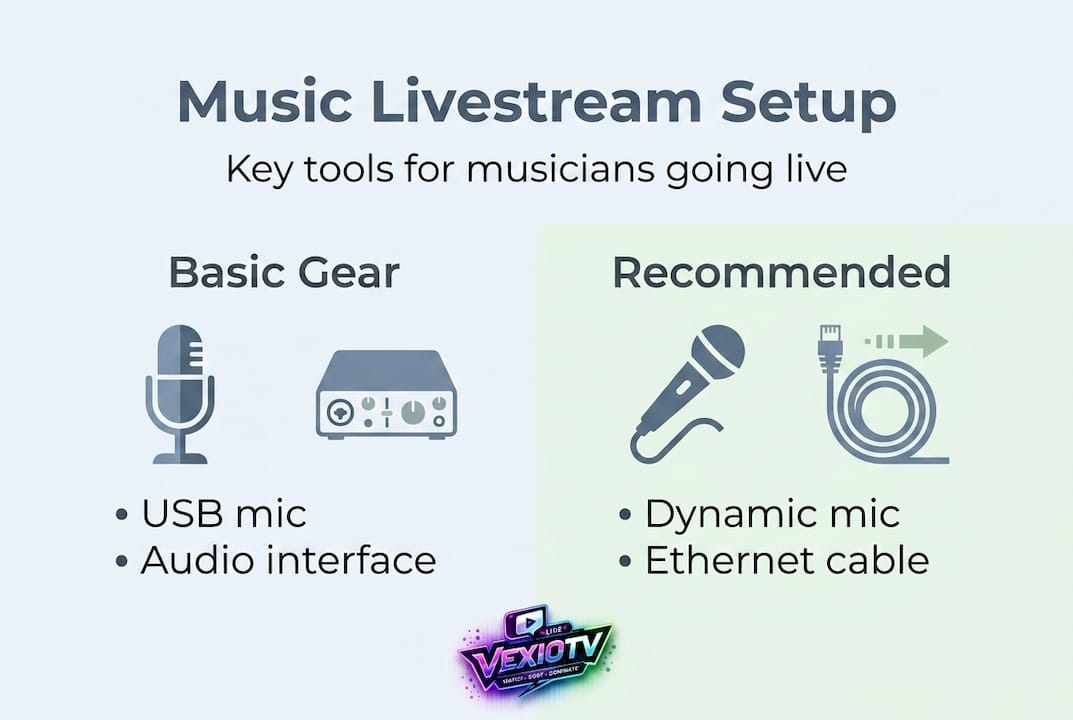
Getting the wrong gear is one of the fastest ways to end a stream before it starts. For music specifically, audio hardware matters more than almost anything else. Here is what you need:
Core hardware checklist:
- Dynamic microphone (Shure SM58 is a reliable, widely used choice)
- Audio interface (Focusrite Scarlett series is the industry standard for entry-level streaming)
- Computer with at least 8 GB RAM and a modern quad-core processor
- Webcam or dedicated camera (1080p minimum)
- XLR cables and USB cables
- Headphones for monitoring
- Wired Ethernet cable and router access
Software you need:
- OBS Studio (free, open-source broadcast software)
- Your platform's streaming dashboard (YouTube, Twitch, or another service)
- Any DAW (digital audio workstation) plugins if you plan to process audio externally
The live streaming setup guide on the VexioTV blog breaks this down further for first-time streamers. On the technical side, the standard OBS setup process involves installing OBS, adding your audio interface and microphone as audio sources, adding your camera as a video source, building scenes for different camera angles, setting your bitrate to 6000 kbps for 1080p output, and connecting your stream key from the platform you choose.
Internet speed matters. For HD music streaming, you need a minimum 15 Mbps upload speed. Wired Ethernet is strongly preferred over Wi-Fi. Always have a cellular hotspot ready as a backup in case your main connection drops mid-stream.
Required vs. recommended setup:
| Component | Required | Recommended |
|---|---|---|
| Microphone | Any USB mic | Shure SM58 (XLR, dynamic) |
| Audio interface | Basic USB interface | Focusrite Scarlett 2i2 or higher |
| Camera | 720p webcam | 1080p camera or DSLR via capture card |
| Internet speed | 10 Mbps upload | 25 Mbps upload or more |
| Computer | 8 GB RAM, quad-core | 16 GB RAM, 6-core or higher |
| Software | OBS Studio (free) | OBS + audio plugins or DAW routing |
The music livestream space is growing fast. Livestream hours in Q3 2025 show YouTube at 13.25 billion hours (47% share), TikTok at 9.23 billion hours (30%), and Twitch at 4.3 billion hours (15%), with top music streamers reaching over 48,000 hours watched in a single week. That kind of reach is available to any musician who shows up consistently with the right setup.
Step-by-step: How to livestream your music performance
Now that you know what you need, let's walk through setting up and launching your first music livestream.
Setting up your stream properly before you go live saves you from discovering problems when viewers are already watching. Work through these steps in order.
- Install and open OBS Studio. Download it free at obsproject.com. Run the auto-configuration wizard on first launch and select "Optimize for streaming."
- Add your audio source. In OBS, go to the Sources panel and click the plus icon. Select "Audio Input Capture." Choose your audio interface from the dropdown. Rename it clearly (for example, "Scarlett 2i2").
- Add your video source. Click the plus icon again and select "Video Capture Device." Choose your webcam or camera from the list. Adjust the resolution to 1080p if available.
- Create your scenes. OBS lets you build multiple scenes and switch between them live. Create at least two: a wide shot showing your full setup and a close-up on your instrument or face. Label them clearly so you can switch fast.
- Set your output bitrate. Go to Settings, then Output, then set your video bitrate to 6000 kbps for 1080p streaming. Set audio bitrate to 320 kbps for music quality.
- Get your stream key. Log into your chosen platform. On YouTube, go to YouTube Studio, then Go Live, then copy the stream key. On Twitch, find it in Creator Dashboard under Settings. Paste this key into OBS under Settings then Stream.
- Start a test stream. Go live in private or unlisted mode first. Watch it back or have a friend check it. Listen for audio sync and watch for dropped frames.
Check out these creative livestreaming tips and explore streaming formats for musicians to decide on the best approach for your style.
Step summary table:
| Step | Tool needed | Outcome |
|---|---|---|
| Install OBS | Computer, obsproject.com | Software ready to configure |
| Add audio source | Audio interface, XLR mic | Clean audio capture in OBS |
| Add video source | Webcam or camera | Clear video feed in OBS |
| Create scenes | OBS Studio | Easy switching between angles |
| Set bitrate | OBS Output settings | High-quality stream output |
| Input stream key | Platform dashboard | Stream connected to channel |
| Test stream | OBS + platform | Issues caught before going live |
Pro Tip: Run a full, uninterrupted rehearsal stream at least 30 minutes long before your actual performance. Play your full set, simulate audience interaction, and watch the recording afterward to catch any issues with sound balance or camera framing.
Audio excellence: Setting up professional-sounding streams
With your stream technically ready, let's ensure your sound is as crisp and clear as your music deserves.
For music streams, audio quality is the deciding factor. Viewers will tolerate average video. They will not stay for bad audio. This is the one area worth spending extra time on.
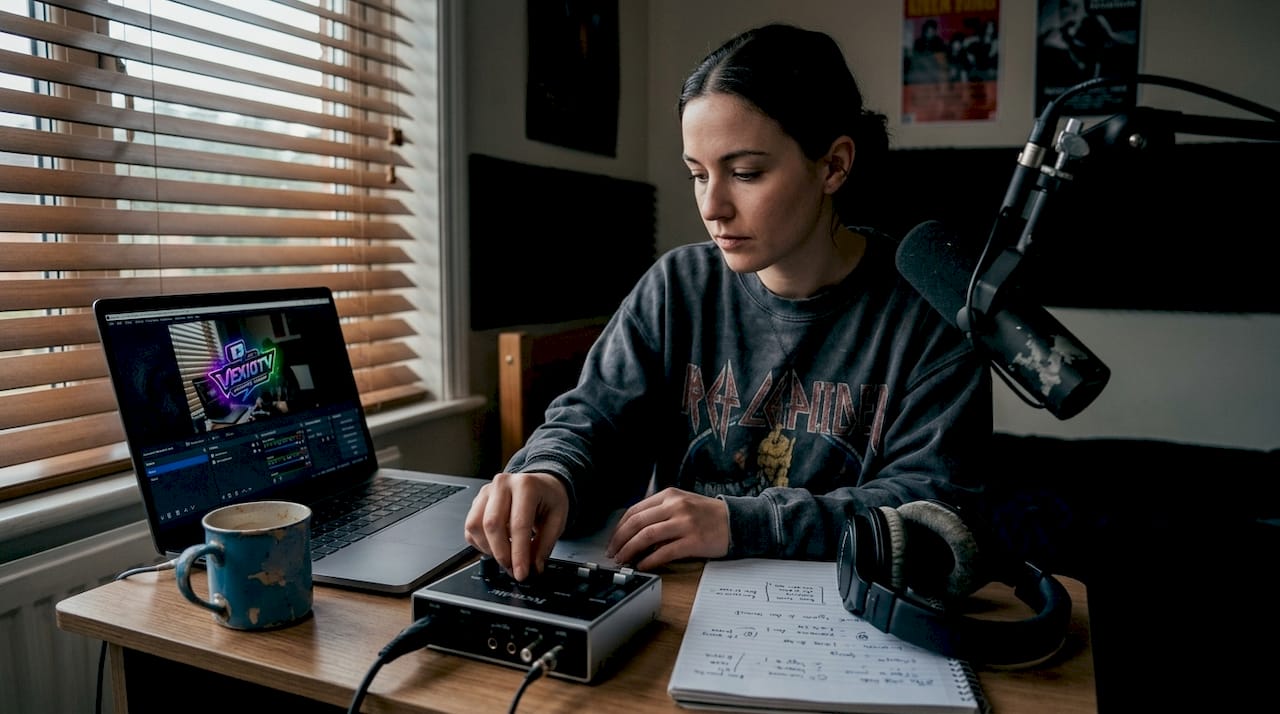
Why dynamic mics work better for music streams:
Dynamic microphones like the Shure SM58 are built to handle high-volume sound sources. They reject background noise better than condenser mics in untreated rooms. For a live performance setup, this makes them more practical and more forgiving of room acoustics.
Gear that delivers results:
- Shure SM58 or SM7B for vocals
- Focusrite Scarlett 2i2 or 4i4 for routing multiple sources
- Studio monitor headphones for real-time monitoring
- Boom arm or mic stand for stable placement
Audio filters to apply in OBS:
- Noise Gate: Cuts background noise when you are not singing or playing. Set the close threshold around -50 dB and the open threshold around -35 dB.
- Compressor: Smooths out volume spikes. Set ratio to 3:1 and attack to around 6 ms.
- Basic EQ: Roll off low frequencies below 80 Hz to remove rumble. Boost slightly at 5 kHz for vocal clarity.
Check out stream audio best practices for more detailed filter settings specific to music.
"Audio is the most important technical element of a music livestream. A clear, balanced mix between your vocals and instruments will keep listeners in your stream far longer than sharp visuals alone." — Concert News Online
Mixing live while streaming:
Balance your vocal channel and instrument channels on your audio interface before you go live. Set your vocal fader slightly higher than your instruments, since vocal intelligibility keeps viewers engaged. Avoid clipping by keeping your OBS audio meter in the green and yellow range, never consistently hitting red.
Pro Tip: Record your test stream locally in OBS (Settings then Output then Recording) and listen with headphones. You will hear issues in the mix that you miss while performing.
Engage and grow your music audience live
Strong sound draws in listeners; live engagement helps you keep them coming back.
Getting viewers to stay and return is a skill separate from the performance itself. The tools available on most streaming platforms make real-time audience interaction straightforward.
Features that drive engagement:
- Super Chats and donations: Viewers pay to have their message highlighted. Acknowledge these on stream to encourage more.
- Polls: Ask your audience to vote on the next song you play or which guitar you pick up next.
- Q&A: Pause between songs and take questions. This builds real connection without requiring much extra effort.
- Shoutouts: Call out new followers or long-time supporters by name.
Using Super Chats, polls, and Q&A during your streams keeps viewers active instead of passive. Real-time metrics like chat messages per minute and average watch time tell you which parts of your set keep people watching and which parts cause them to leave.
Consistency and audience interaction are the two biggest factors in building a music fanbase through livestreaming. Schedule your streams on the same day and time each week. Promote them at least 48 hours in advance across your social channels. After each stream, review your metrics: watch time, peak concurrent viewers, and new followers gained.
For more detail on retention and interaction, read the music livestream engagement tips and the interactive livestream setup guide.
Top music streamers hit 48,000+ watched hours in a single week. That level of reach is built through repeated, consistent streams and active viewer interaction over time.
Pro Tip: After each stream, write down three things that went well and one thing to improve. This simple habit creates a feedback loop that compounds over weeks and months.
Troubleshooting and tips for smooth, uninterrupted music livestreams
Now that you've got the basics and engagement figured out, avoid the pitfalls that can spoil your hard work.
Technical problems during a live performance are frustrating and avoidable in most cases. Knowing what to expect lets you fix issues before they affect your viewers.
Most common issues and how to fix them:
- Audio-video sync problems. If your audio is ahead of or behind your video, use the "Sync Offset" option in OBS audio settings. Add positive millisecond values to delay audio if it is running early. Check your interface buffer settings too, since a high buffer size can introduce latency.
- Wi-Fi latency and dropped frames. Wi-Fi interference causes packet loss, which shows up as dropped frames in OBS. The fix is straightforward: plug into Ethernet. If you cannot run a cable, position your router as close as possible and use the 5 GHz band.
- Stream dropping unexpectedly. Audio-video sync issues and dropped streams can both be addressed by reducing your output bitrate temporarily, checking your platform's ingest server selection in OBS, and enabling the local recording option so you never lose your performance footage even if the stream drops.
- Microphone clipping or distortion. Turn down the gain knob on your audio interface. In OBS, add a compressor filter to your audio source to catch peaks before they distort.
- CPU overload. If OBS shows a red or yellow indicator in the bottom right, lower your output resolution or switch encoder from x264 to your GPU encoder (NVENC for Nvidia, AMF for AMD).
"Running a test stream before every performance is not optional — it is the single most reliable way to catch technical problems before they become your audience's problem." — Spiel Creative
Pro Tip: Build a short pre-stream checklist. Include: check Ethernet connection, verify audio levels in OBS, confirm stream key is active, start local recording, and do a 2-minute test stream. Keep this checklist visible during every stream prep.
For a broader look at what goes wrong for streamers, read through these common streaming mistakes to stay ahead of problems other musicians have already encountered.
What most guides miss about livestreaming music
Most technical guides cover gear and software. They skip the part that actually determines long-term success.
Viewers respond to realness. An authentic, slightly imperfect performance tends to attract more loyal fans than a polished production that feels distant. Musicians who stop mid-song to retune, laugh at a mistake, or explain the story behind a song build genuine audience connection. That connection is what turns a casual viewer into a returning fan.
Post-stream analysis is underused by most music streamers. Reviewing your metrics after each session — watch time, peak viewers, moments where viewers left — gives you real data on what works. This is a musician's best tool for improving, and almost no one uses it consistently.
Many musicians quit after five or ten streams with low numbers. The reality is that audience growth is slow at the start and then compounds quickly once a channel has content history and a consistent schedule. Small, steady improvements lead to results. Check out innovative streaming ideas to keep your format fresh while staying consistent.
Focus on building a real connection with the people who show up. Do not chase perfection in production. Chase clarity in communication and consistency in showing up.
Ready to go live? Stream your music with ease
With these steps and a real-world mindset, you are set to make livestreaming a rewarding experience.
VexioTV gives musicians a simple, direct path to going live. One click and you are streaming. No complicated setup or platform restrictions. The platform is built around community and creator growth, making it a natural fit for musicians who want to perform, connect, and earn from their audience.
Sign up at VexioTV and go live today. The platform supports music, IRL content, and creative performances with an interface that keeps the focus on your stream, not on navigating menus. Build your audience, interact in real time, and start earning from the community you create. Your first stream is one click away.
Frequently asked questions
What streaming platform is best for live music in 2026?
YouTube leads with the most hours watched for music live streams. Q3 2025 data shows YouTube at 13.25 billion hours (47% share), followed by TikTok at 9.23 billion hours (30%) and Twitch at 4.3 billion hours (15%).
How fast does my internet need to be for live music streaming?
A minimum upload speed of 15 Mbps is recommended for HD music livestreams, with a wired Ethernet connection preferred over Wi-Fi.
What gear do I absolutely need to livestream my music?
You need a dynamic microphone and audio interface at minimum, along with a capable computer, stable internet connection, and a camera to capture your performance.
How can I interact with my audience during my music live streams?
Use Super Chats, polls, and Q&A features to keep viewers active during your stream and monitor real-time chat metrics to adjust your pacing and engagement throughout the performance.