
TL;DR:
- Starting a live stream requires proper hardware, software, and testing to ensure quality.
- Customization for gaming and music streams enhances viewer experience through tailored setups.
- Engagement, consistency, and self-review are key to building and maintaining a loyal streaming community.
Getting your first live stream off the ground is harder than it looks. You have the content idea, the energy, and the audience in mind, but then comes the gear checklist, the software setup, the platform decisions, and the fear of going live to a blank screen. Most creators stall here, not because they lack talent, but because nobody handed them a clear starting point. This guide covers exactly what you need: hardware, software, settings, and engagement tactics that work for both gaming and music creators. Follow these steps and you will be live, on purpose, with a stream that sounds and looks the part.
Table of Contents
- What you need before you go live
- Step-by-step: Setting up your live stream
- Customizing for gaming and music streams
- Optimizing engagement and avoiding rookie mistakes
- Industry insights: What most new streamers get wrong (and how to fix it))
- Ready to stream? Let VexioTV support your journey
- Frequently asked questions
Key Takeaways
| Point | Details |
|---|---|
| Meet hardware needs | Start with a quad-core CPU, stable internet, and a quality mic for best results. |
| Follow setup steps | Account setup and basic OBS configuration gets you live fast and with fewer issues. |
| Customize by content | Tailor your stream settings and gear for gaming narration or music-quality audio. |
| Focus on engagement | Prioritize audience interaction and steady improvement over flashy equipment. |
What you need before you go live
Before you install anything or sign up anywhere, take stock of what you have. Streaming is resource-intensive, and knowing your baseline saves you from frustrating mid-stream crashes.
Minimum hardware requirements
| Component | Minimum spec | Recommended spec |
|---|---|---|
| CPU | Quad-core 2.5 GHz | 6-core 3.5 GHz or higher |
| RAM | 8 GB | 16 GB |
| GPU | Integrated (basic) | Dedicated GPU (NVIDIA/AMD) |
| Microphone | USB cardioid mic | XLR mic with audio interface |
| Internet upload | 6 Mbps | 10 Mbps or higher |
| Camera | 720p webcam | 1080p webcam or DSLR |
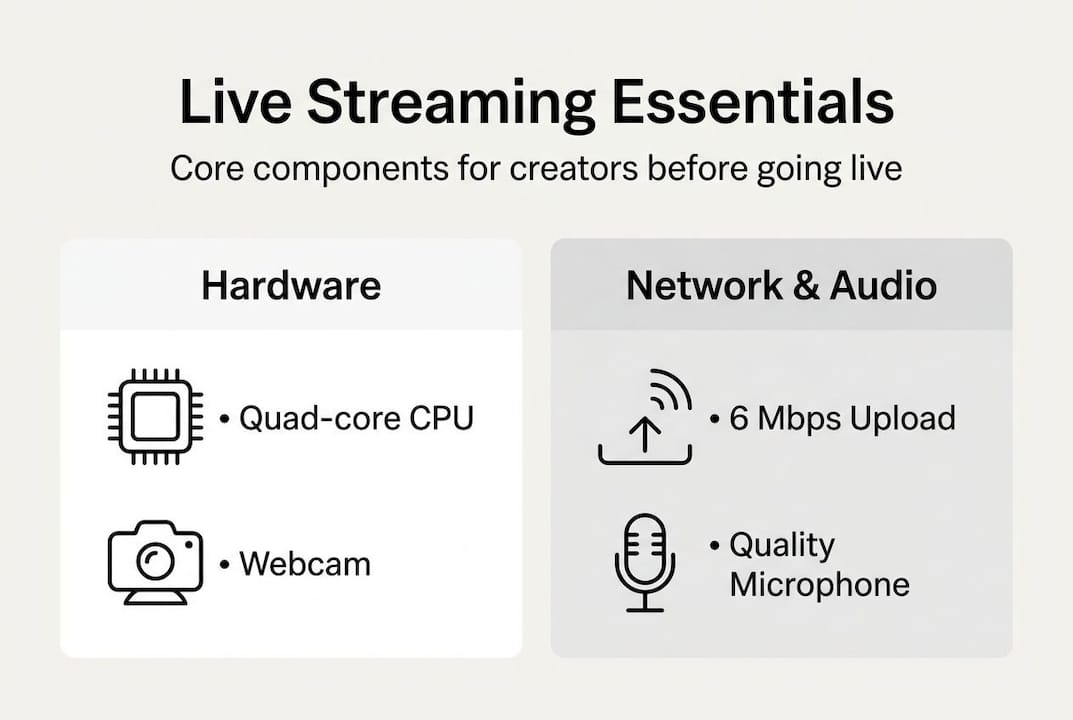
The minimum hardware requirements for smooth streaming include at least a quad-core CPU, a stable upload speed of 6 Mbps, and a dedicated microphone. A bad mic kills a stream faster than any visual issue. Viewers tolerate low resolution, but they leave immediately when audio is poor.
For software, you need two things: a platform account and a broadcasting tool. OBS Studio is free, widely supported, and works on Windows, Mac, and Linux. It is the standard starting point for most streamers. Follow streaming best practices to get the most out of your setup from day one.
Connection checklist:
- Use a wired Ethernet connection, not Wi-Fi, whenever possible
- Run a speed test at fast.com to confirm your upload speed before streaming
- Close background apps that use bandwidth (cloud backups, video calls, downloads)
- Restart your router before long sessions
Gaming vs. music needs at a glance:
- Gaming: Webcam for face cam, capture card if streaming from a console, headset or USB mic
- Music: Audio interface (Focusrite Scarlett is a common choice), XLR microphone, instrument cables if needed
Pro Tip: Run a private stream test before going live to the public. Set your stream to unlisted or private on your platform, go live for 10 minutes, then watch the replay. Check audio sync, video quality, and any lag before your audience sees it.
Step-by-step: Setting up your live stream
With your hardware ready and software downloaded, here is how to get your first stream running.
- Create your platform account. Sign up on your chosen platform (Twitch, YouTube, or VexioTV). Fill in your profile, add a profile photo, and write a short bio so viewers know what to expect.
- Download and install OBS Studio. Go to obsproject.com and install the version for your operating system. Open it and run the auto-configuration wizard. It will detect your hardware and suggest baseline settings.
- Connect OBS to your platform. In OBS, go to Settings > Stream. Select your platform from the dropdown and paste in your stream key. You find the stream key in your platform's dashboard under stream settings.
- Build your scenes. A scene is a saved layout in OBS. Create at least three: one for gameplay or performance, one for a talking/face cam view, and one for a BRB (be right back) screen.
- Configure bitrate, resolution, and FPS. The core settings that affect stream quality most are bitrate, resolution, and frame rate. Start with 720p60 at 4500 kbps if your upload is under 10 Mbps. Move to 1080p60 at 6000 kbps once you confirm your connection handles it.
Platform comparison: Twitch vs. YouTube basics
| Feature | Twitch | YouTube Live |
|---|---|---|
| Discovery | Browse/category | Search and recommendations |
| VOD storage | 14 days (basic) | Indefinite |
| Monetization start | Affiliate (50 followers) | 500 subscribers |
| Delay options | Low latency mode | Ultra low latency |
The live streaming market continues to grow, with viewer engagement on live content significantly outpacing pre-recorded video. Setting up an interactive stream setup from the start puts you ahead of creators who treat it as an afterthought. Take time to avoid common streamer mistakes early, because bad habits are harder to fix later.
Pro Tip: Start with OBS recommended settings and only adjust one variable at a time. Change bitrate, test, then change resolution. Changing everything at once makes it impossible to know what caused a problem.
Customizing for gaming and music streams
Your basic stream is live. Now make it fit your content type. Gaming and music streams have different technical and visual needs.
For music streamers:
- Use an XLR microphone connected through an audio interface, not a USB mic plugged directly into your computer
- Install OBS VST plugins for EQ and compression to shape your sound before it reaches viewers
- Set your OBS audio sample rate to 48kHz under Settings > Audio
- Keep your audio peaks below -6dBFS to avoid distortion
- The differences in audio setup for music versus gaming streams are significant: music requires much tighter gain staging and monitoring
For gaming streamers:
- Build multiple scenes: gameplay full screen, face cam overlay, and a BRB screen
- Focus on clear narration and commentary. Viewers follow the person, not just the game
- Use a webcam positioned at eye level. Looking down into a camera reads as disengaged
"What you hear in your headphones during a test stream is exactly what your viewers hear. If something sounds off to you, fix it before going live."
Visual overlays add professionalism. Use alerts for new followers and subscribers, and add branded lower thirds or borders. Keep overlays simple. Cluttered screens push viewers away. Check out music streaming setup tips for artist-specific guidance, and learn how using chat for engagement can turn passive viewers into active participants.
Pro Tip: Test your audio mix with headphones before every stream. Play your game or instrument, then listen back on the same headphones your viewers would use. What you hear is what they get.
Optimizing engagement and avoiding rookie mistakes
Your stream looks good and sounds clean. Now the real work begins: keeping people watching and coming back.
Interaction tools to use from day one:
- Read and respond to chat messages out loud. Viewers who feel heard stay longer
- Run polls during slower moments to involve the audience in decisions
- Set up follower and subscriber alerts so new viewers get a public acknowledgment
- Use moderation bots (Nightbot, StreamElements) to filter spam and set chat rules
Rookie mistakes to avoid:
- Overcomplicated scenes that crash OBS mid-stream
- Ignoring chat while focused on gameplay or performance
- Bad audio from skipping the test stream step
- Going live with no schedule, then streaming inconsistently
Live viewers spend 8.1x longer watching live content than recorded video, and a retention rate of 40 to 60 percent signals strong engagement for a stream. If you are below 40 percent, your content or audio quality needs attention. If you are above 60 percent, your community is forming.
Explore types of successful streams to find formats that fit your style, learn about building streaming communities to retain viewers long term, and look at creative approaches to growth when you are ready to scale.
Pro Tip: Watch your own VODs (recorded replays) after every stream. Note where viewers dropped off, where chat went quiet, and where energy peaked. That data tells you more than any tutorial.
Industry insights: What most new streamers get wrong (and how to fix it)
Most new streamers spend weeks researching gear and almost no time practicing being on camera. A $400 microphone does not fix an awkward on-air presence. The creators who grow fastest are the ones who go live early, look uncomfortable for a few weeks, and then find their rhythm through repetition.
Another common error: chasing big numbers instead of building a small, invested community. A stream with 20 engaged viewers who return every week is more valuable than 200 passive viewers who never come back. Engagement drives platform algorithms, not raw viewer count.
Growth comes from routine and honest self-review. Stream on a consistent schedule, check your analytics weekly, and act on what you see. The industry is also shifting toward hybrid formats where gaming and music overlap, and creators who experiment with those combinations are finding new audiences. Avoid the streaming mistakes most beginners make by treating your first 30 streams as practice runs, not performances.
Ready to stream? Let VexioTV support your journey
You now have the steps, the settings, and the strategy. The next move is finding a platform that supports your growth without getting in the way.
Explore VexioTV and see how the platform is built for gaming and music creators who want to go live fast, build a community, and earn from their streams. VexioTV offers a one-click go-live experience, integrated community tools, and monetization options designed for content creators at every stage. Whether you are streaming your first session or your hundredth, VexioTV gives you the space to do it on your terms.
Frequently asked questions
What equipment do I need for a basic live stream?
You need a quad-core CPU, a quality microphone, a webcam, and a stable internet connection with at least 6 Mbps upload speed. These are the baseline requirements for a stream that runs without technical issues.
What's the ideal bitrate and resolution for Twitch or YouTube streaming?
For 1080p60, use 5000 to 6000 kbps bitrate. For 720p60, aim for 3500 to 4500 kbps for smooth, consistent results.
How do I stream music performances with good audio quality?
Use an audio interface for XLR mics or instruments, set OBS to 48kHz sample rate, and keep peaks below -6dBFS to prevent distortion during your performance.
How can I keep viewers engaged during my streams?
Interact with chat regularly, use overlays and alerts to reward new followers, and watch your replays to identify where engagement dropped and what kept viewers watching.